


Run your existing company with an AI team
Already have a business? Train your AI team on it: your website, your Google Business Profile, your files and your way of working. Then the team finds customers, emails them, posts on social media, writes blog articles, runs ads and improves your website. You approve the important decisions.
Start your companyTrain your AI team on your business
Show Brainer where your business is. Your AI CEO reads it, learns what you sell, who you sell to and how you talk, and writes it all down for the team.
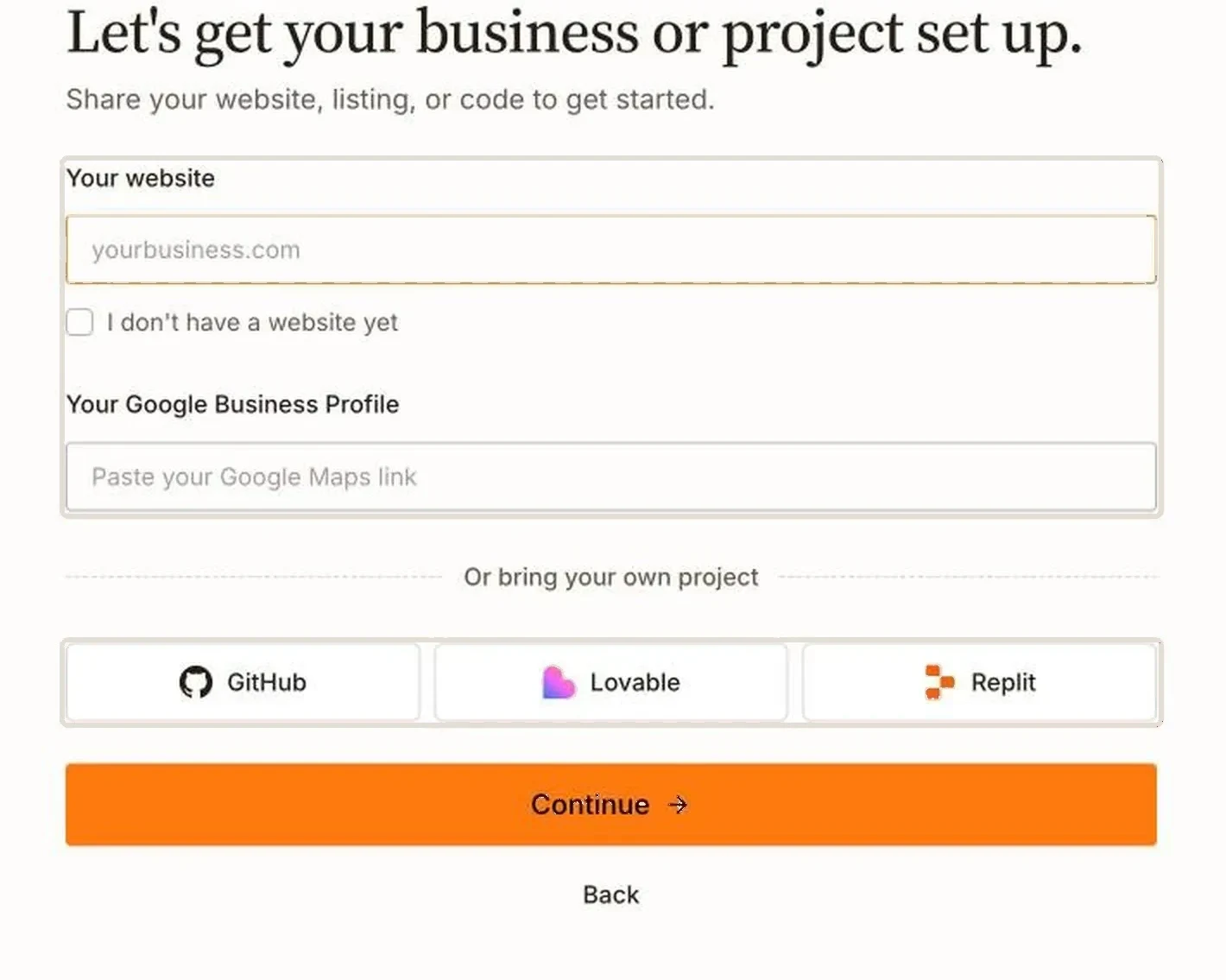
Show it where your business is
Click Grow it with Brainer. Add your website address and the link to your Google Business Profile.
Have code instead? Bring your project from GitHub, Lovable or Replit. No website yet? Tick the box and carry on.

- Read 14 pages of clearpathbooks.com
- Read the Google Business Profile and its reviews
- Wrote the Company, Brand and Research documents
Clearpath does monthly bookkeeping for small shops, from $149 a month. In reviews, customers praise fast replies most.
I’ll lead with fast replies in our posts and emails. Is the $149 price still right?
Your CEO learns your business
It reads your website and your Google Business Profile, and works out what you sell, your prices, who your customers are and how you talk to them.
It writes all of this into your company documents, and asks you about anything it can’t find.
- Read customer-calls.pdf, 12 pages
- Looked at price-list.png
- Updated the Company document
- Created task: Put the monthly close at the top of the homepage
Three of the five owners asked the same thing: how fast they can close the month. That’s our headline now.
I’ve asked the Product Engineer to rework the homepage around it, and the Writer will answer it on the blog this week.
Send your team your files
Attach pictures, PDFs, Word documents or text files in any chat. The teammate reads them and updates the company documents.
Every file is saved, so you only send it once.
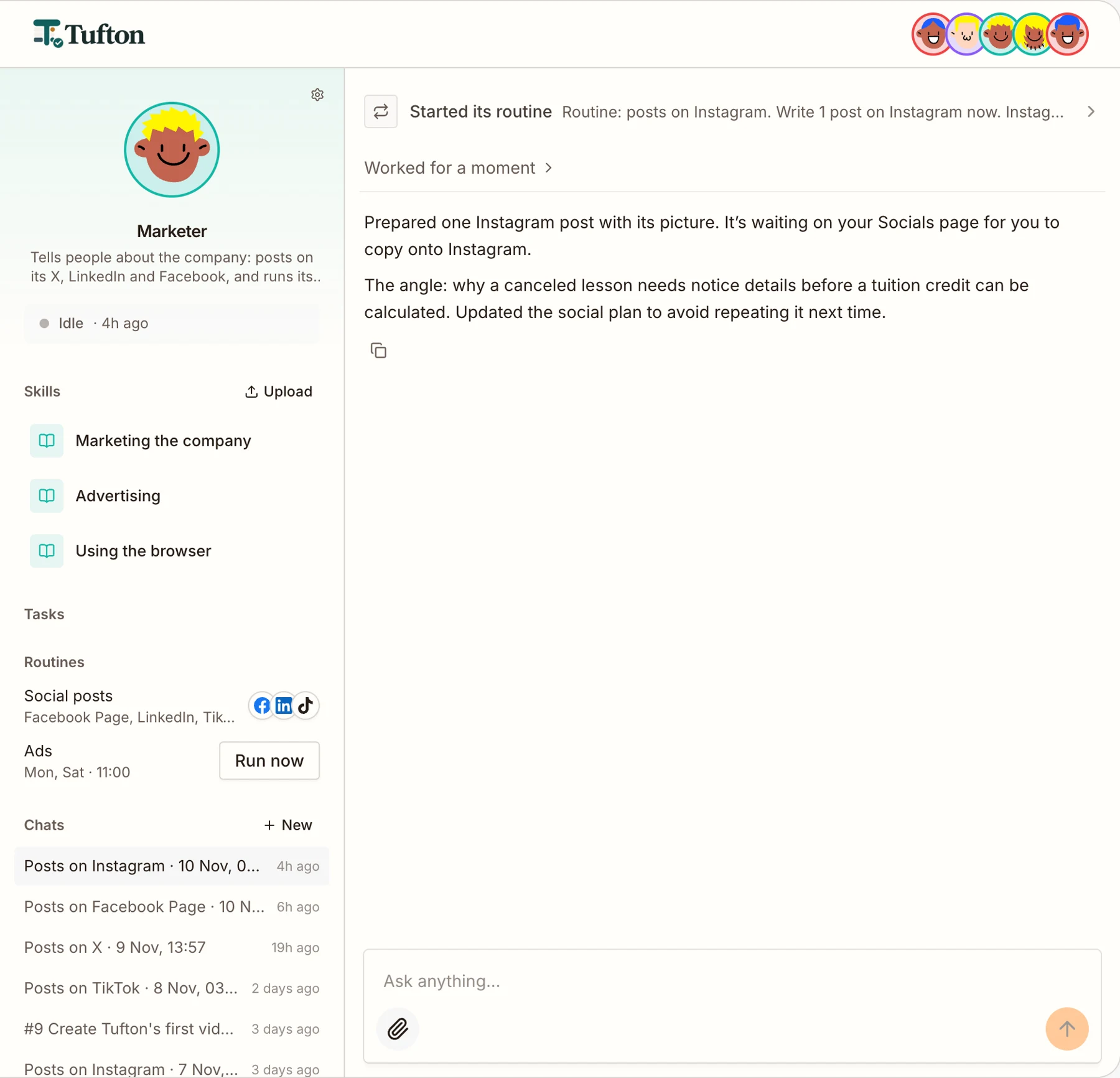
Teach each teammate how you work
Every teammate has skills: written instructions it follows. Upload your own, like how you answer customers or what your brand never says.
The teammate follows them from its next job onwards.
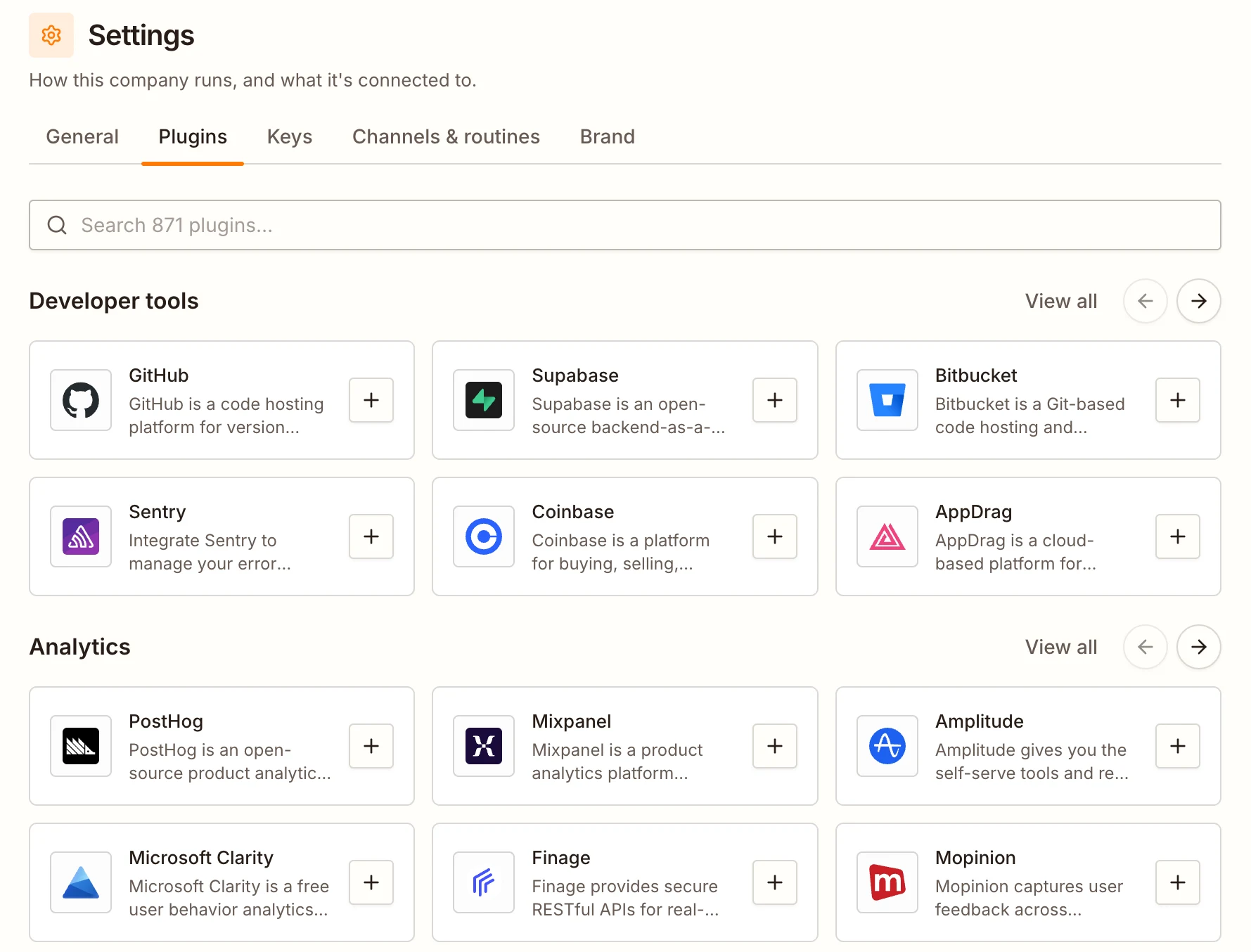
Connect the apps you already use
Connect your CRM, documents, spreadsheets, chat and more. Each teammate uses the apps that fit its job.
You can also upload instructions for a teammate, like how you talk to customers. It follows them from then on.


- +1,500
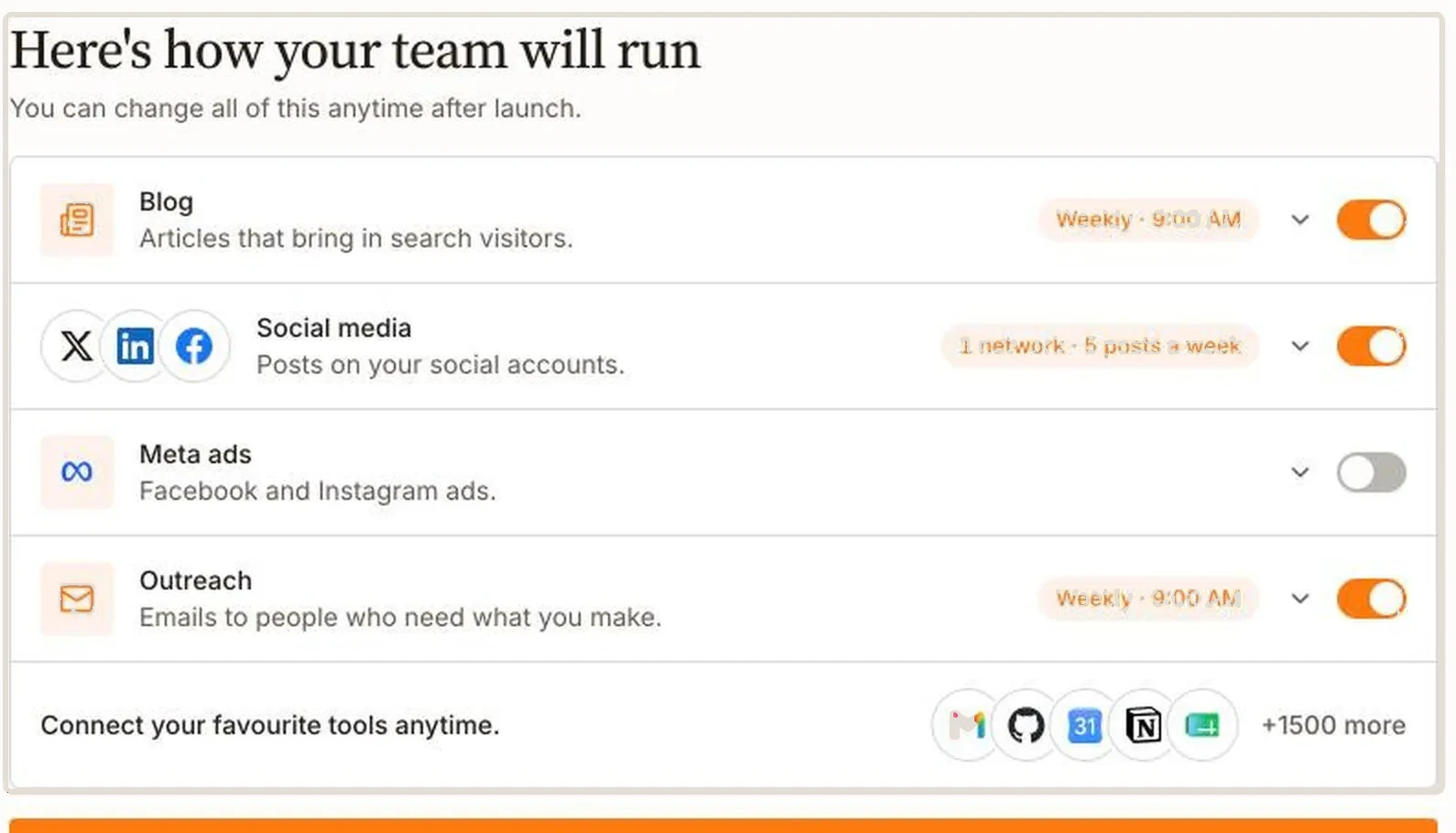
Choose what the team works on
Turn on the ones you want: blog, social media, Facebook and Instagram ads, and emails to possible customers. Choose how often each one runs.
Click Launch my business and the team starts working.
All your company knowledge, in one place
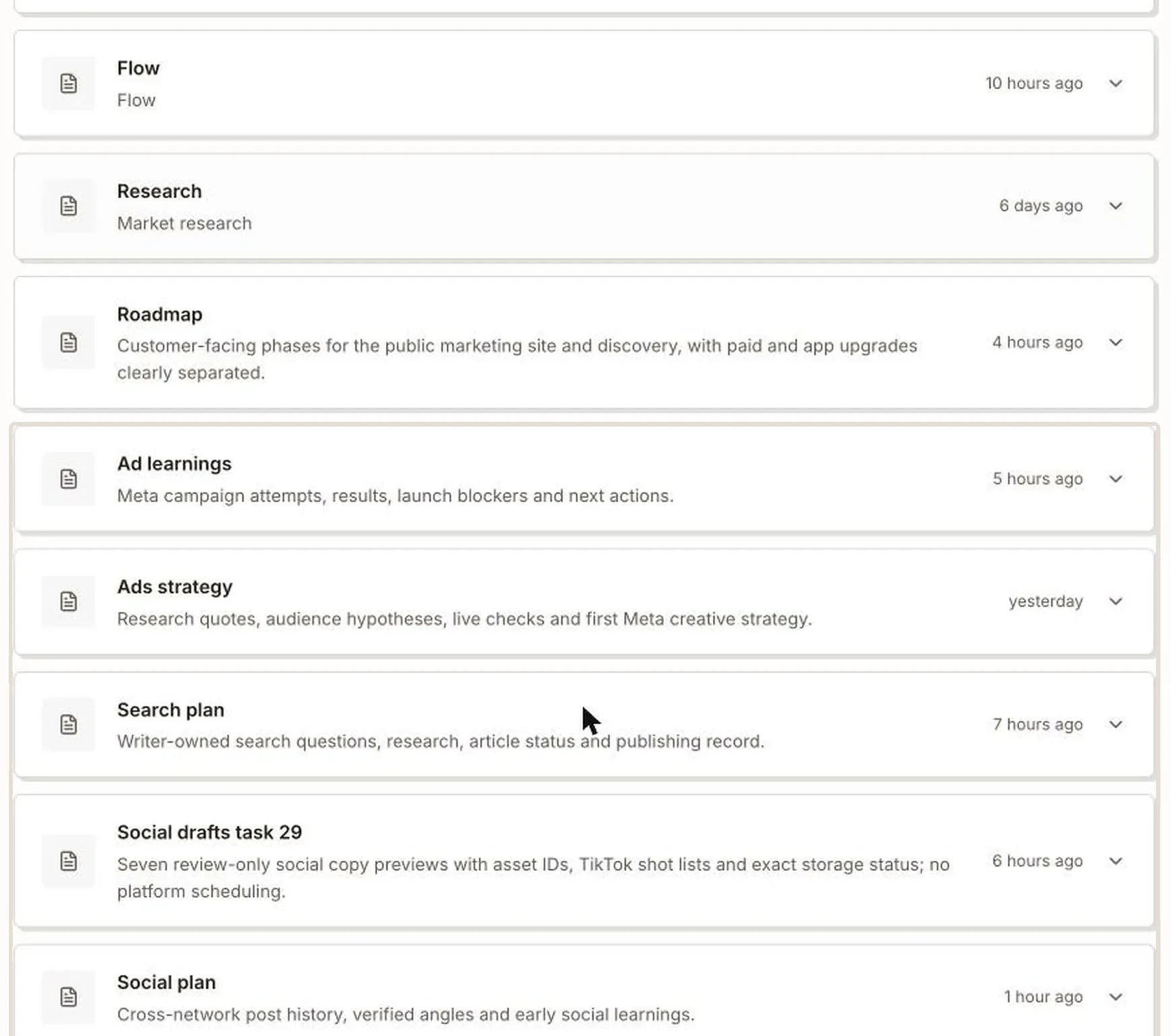
Everything the team learns about your business is saved on one page, called Artifacts. Every teammate works from the same documents, so they all describe your business the same way.
Your company’s documents
Five main documents: Brand (how you look and sound), Company (what you do and for whom), Flow (how customers find you, sign up and pay), Research (your market) and Roadmap (what to build next).
Below them are the notes each teammate keeps, like what ads were tried and which worked. The team updates all of these as it works.
One brand document for everything
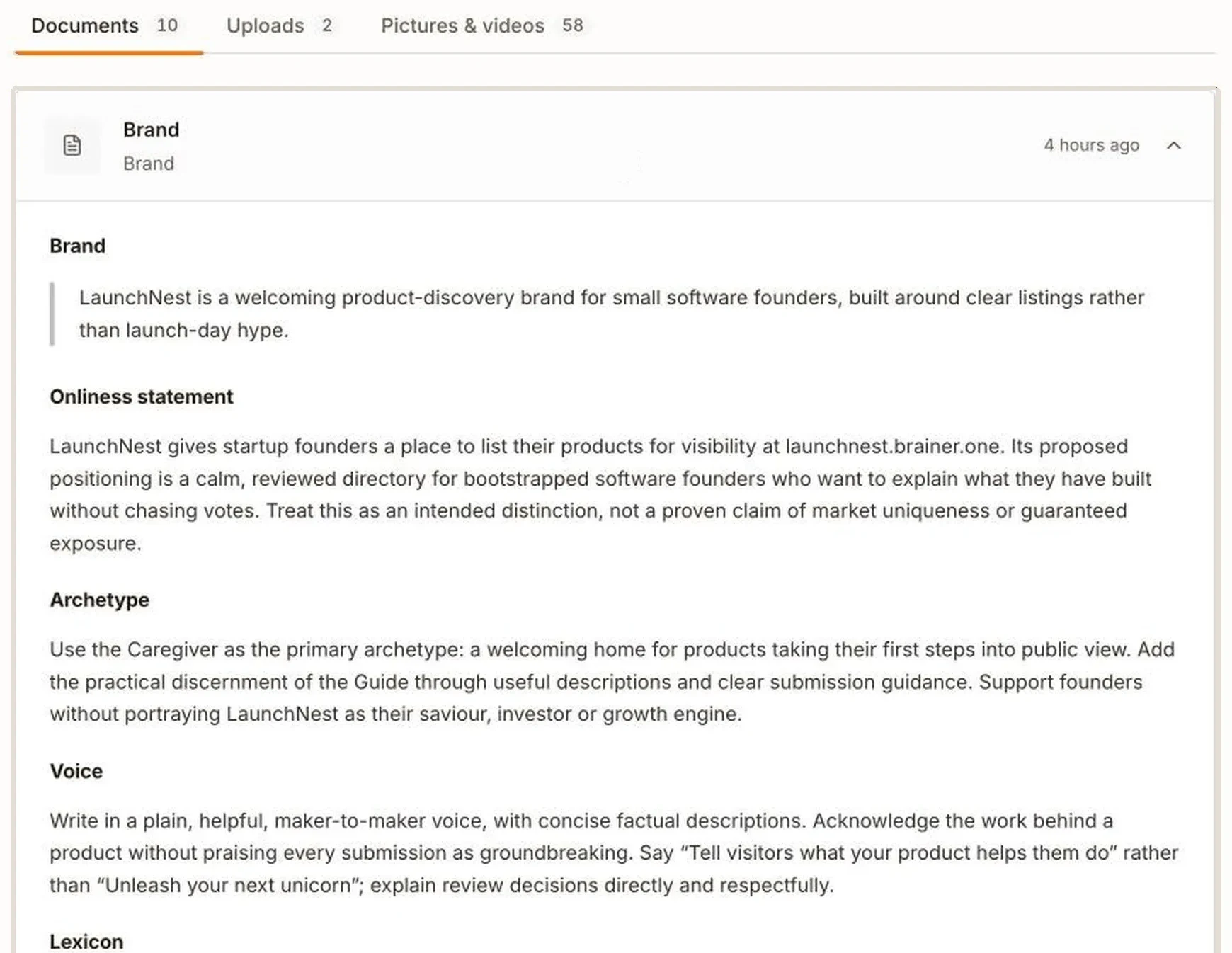
The Brand document says how your company talks and which words it uses and avoids. Every post, ad, email and article follows it.
If something is wrong, tell your CEO, for example “our price is now $19”. The CEO updates the document, and the whole team uses the new version from then on.
- Updated the Company document
- Added payroll to the Flow document
- Created task: Add a payroll page to the website
Done. The whole team now knows about payroll. The Writer will cover it on the blog, and Outreach will mention it to shops with staff.
Keep it up to date by telling your CEO
New service? New price? Tell your CEO in one sentence. It updates the documents.
From then on, every post, email, ad and article uses the new information.
Every picture the team made
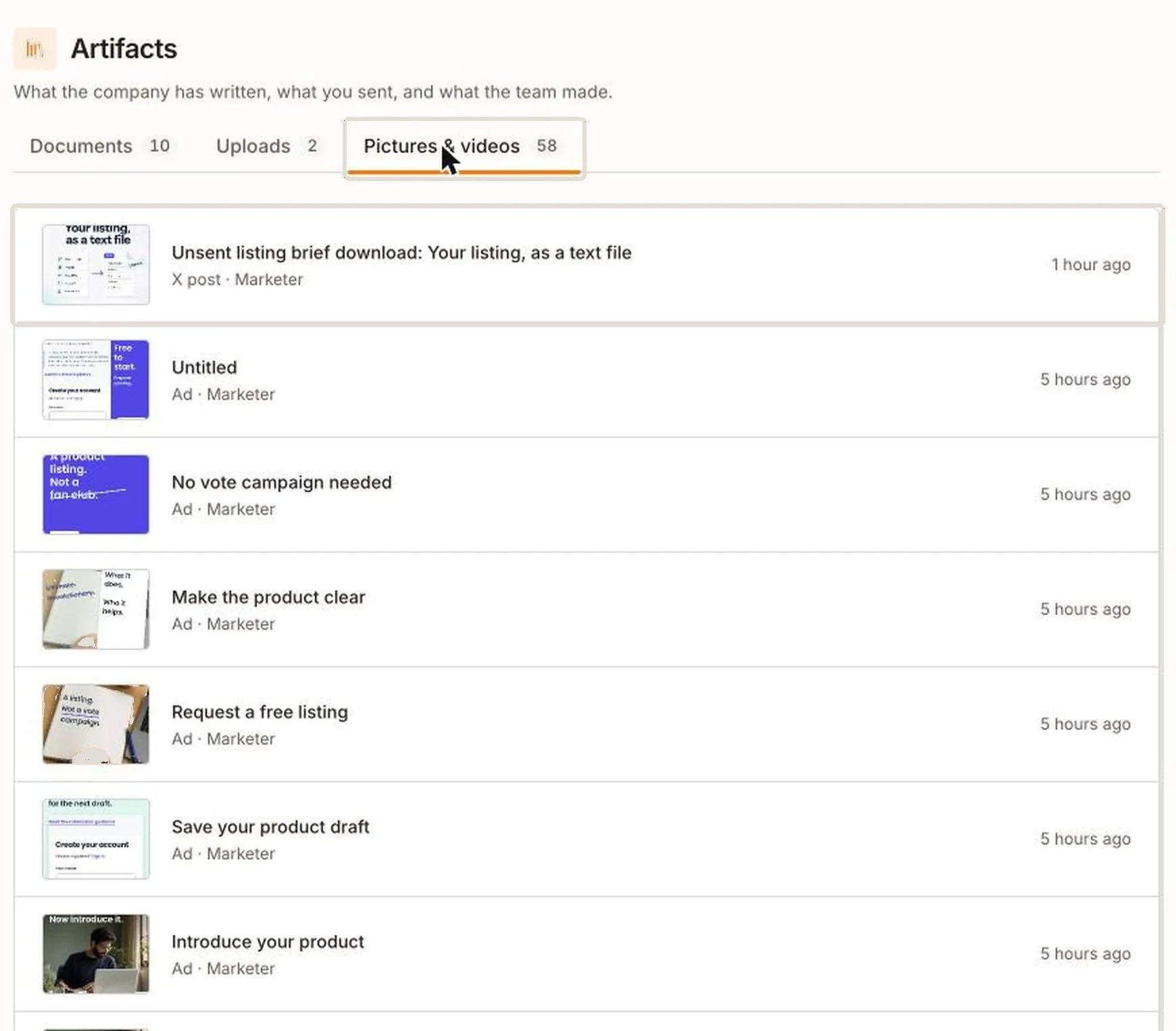
Each picture and video shows what it was for (a post, an ad or an article) and which teammate made it.
Open any of them full size, and download it.
Keep your website, or let the team improve it
You decide. The team can focus only on finding customers, or your AI Product Engineer can also take over the website and keep improving it.
Bring your existing code
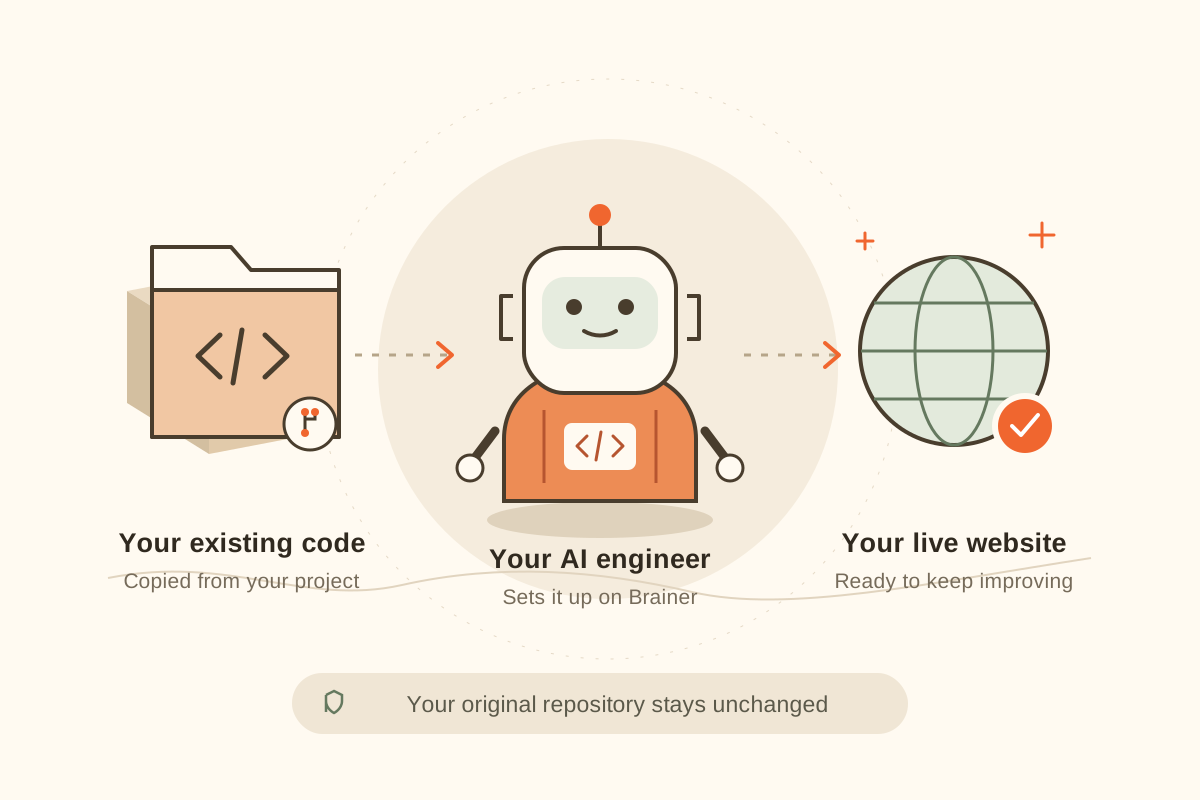
Have a Next.js website on GitHub? Brainer copies it once. Your own repository is never changed.
The Engineer sets it up on Brainer’s hosting, and your visitors see the same site as before.
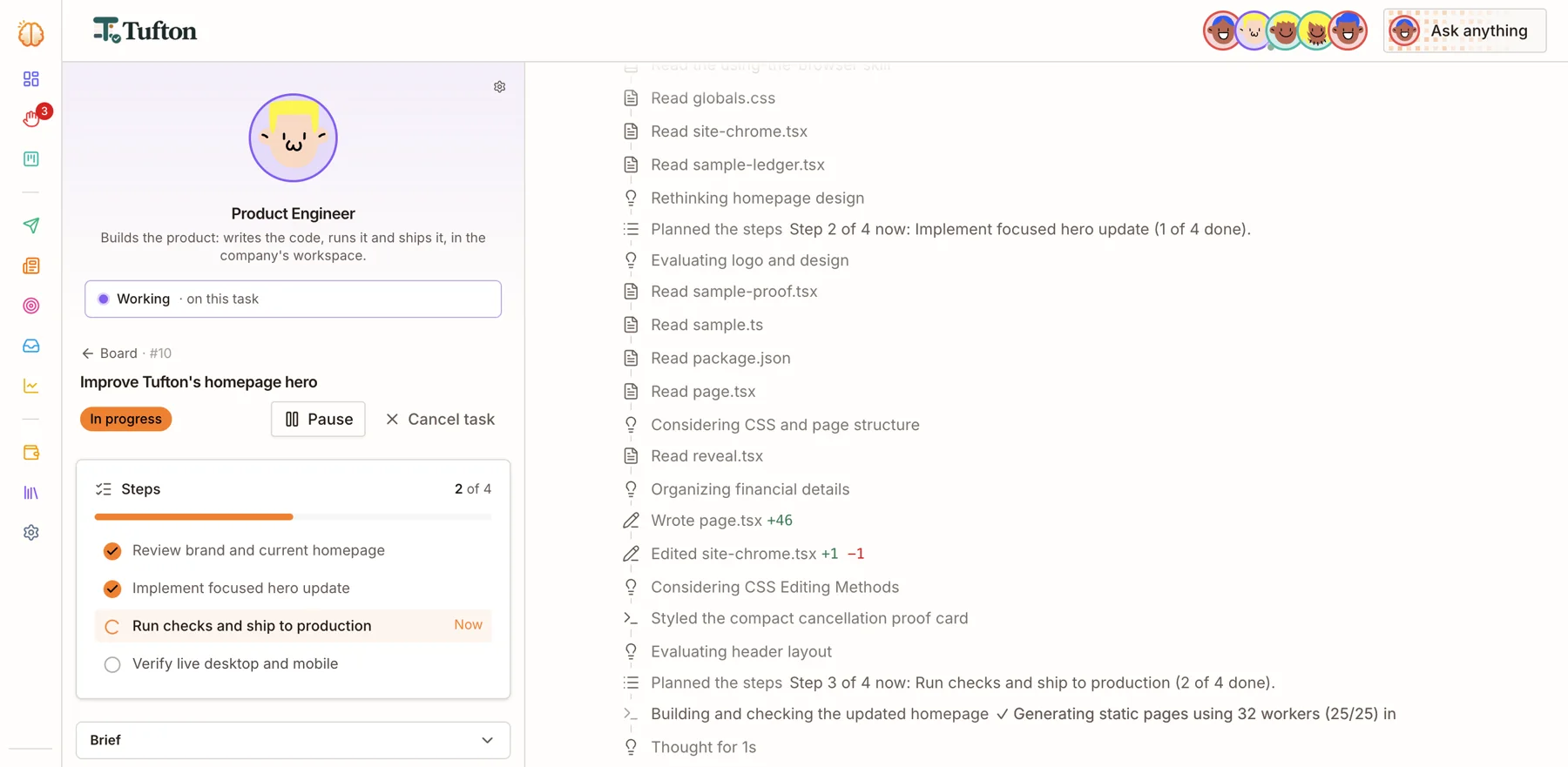
The Engineer builds it, step by step
The Engineer splits each task into steps and does them one by one. You can open the task and watch each step.
If it’s not what you want, pause or cancel the task with one click.
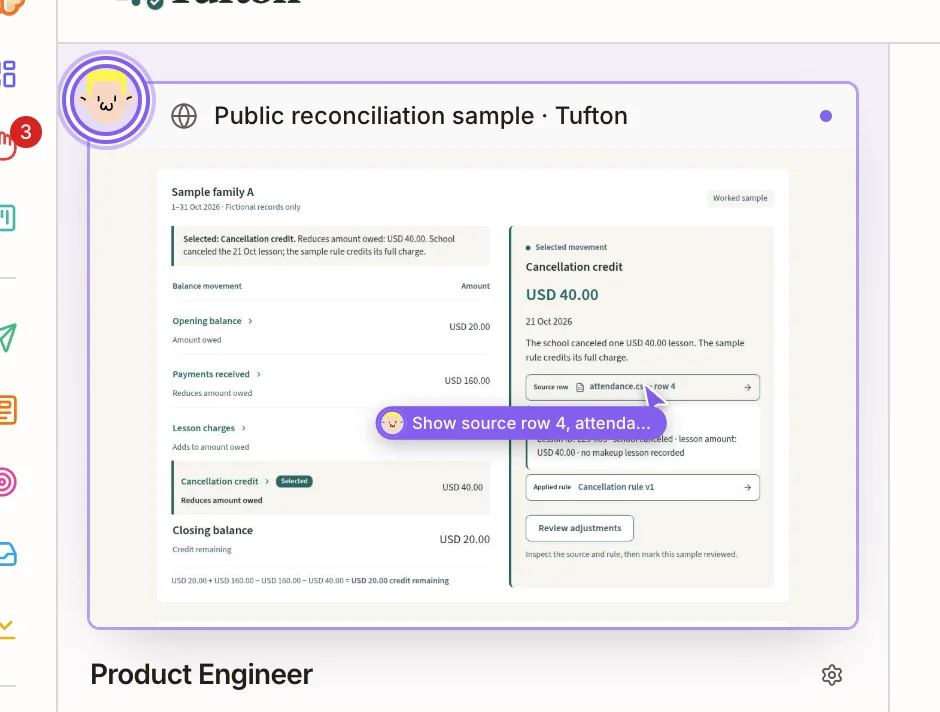
The Engineer tests its own work
Before it marks a task done, the Engineer opens your site in a real browser, on a computer screen and a phone screen, to check that it works.
Then it puts the change live and writes a short report of what it did.
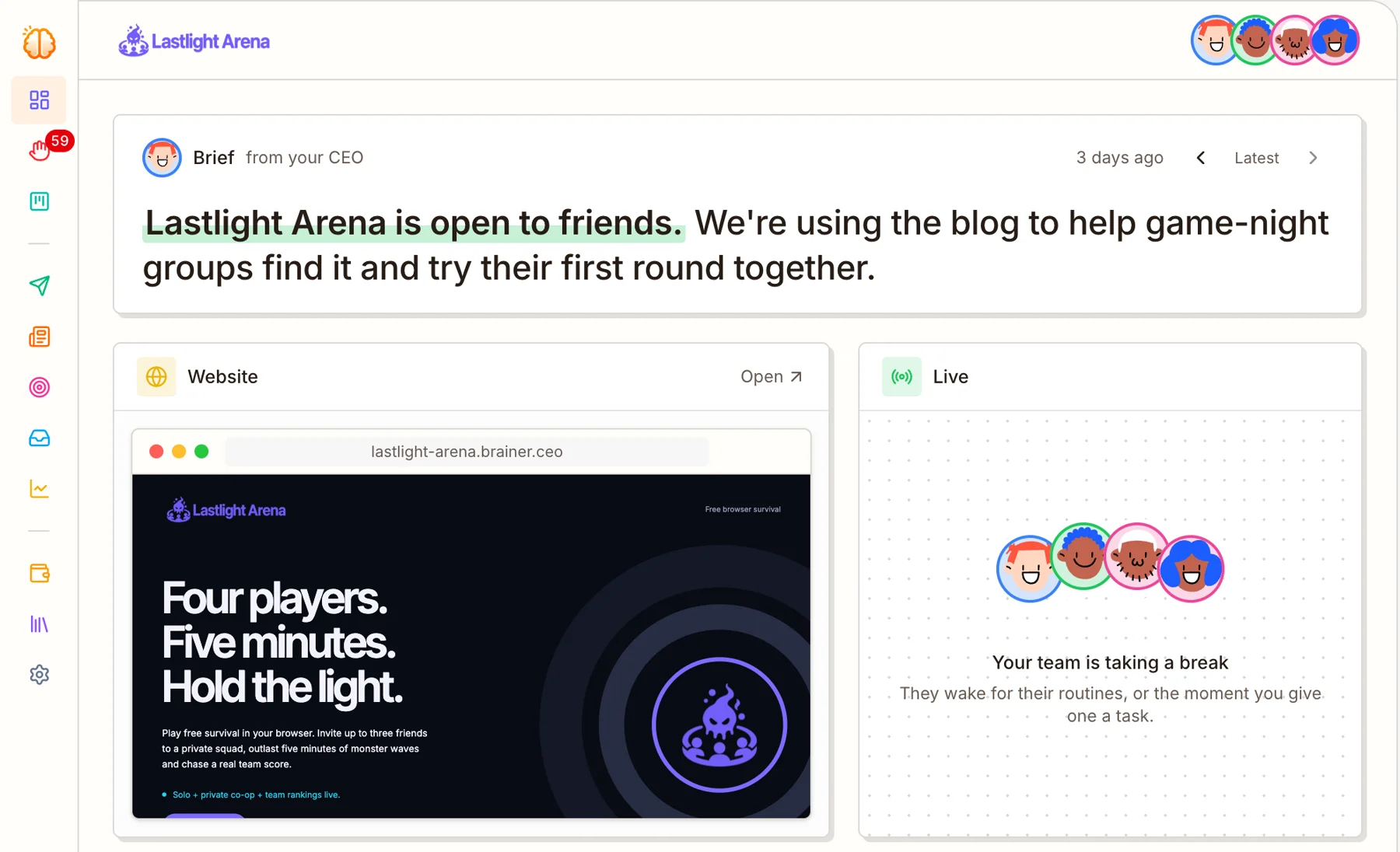
The Engineer improves it over time
New pages, new features, and fixes when something breaks, in the order your CEO decides.
Want something changed? Tell your CEO in plain words. The CEO creates the task.
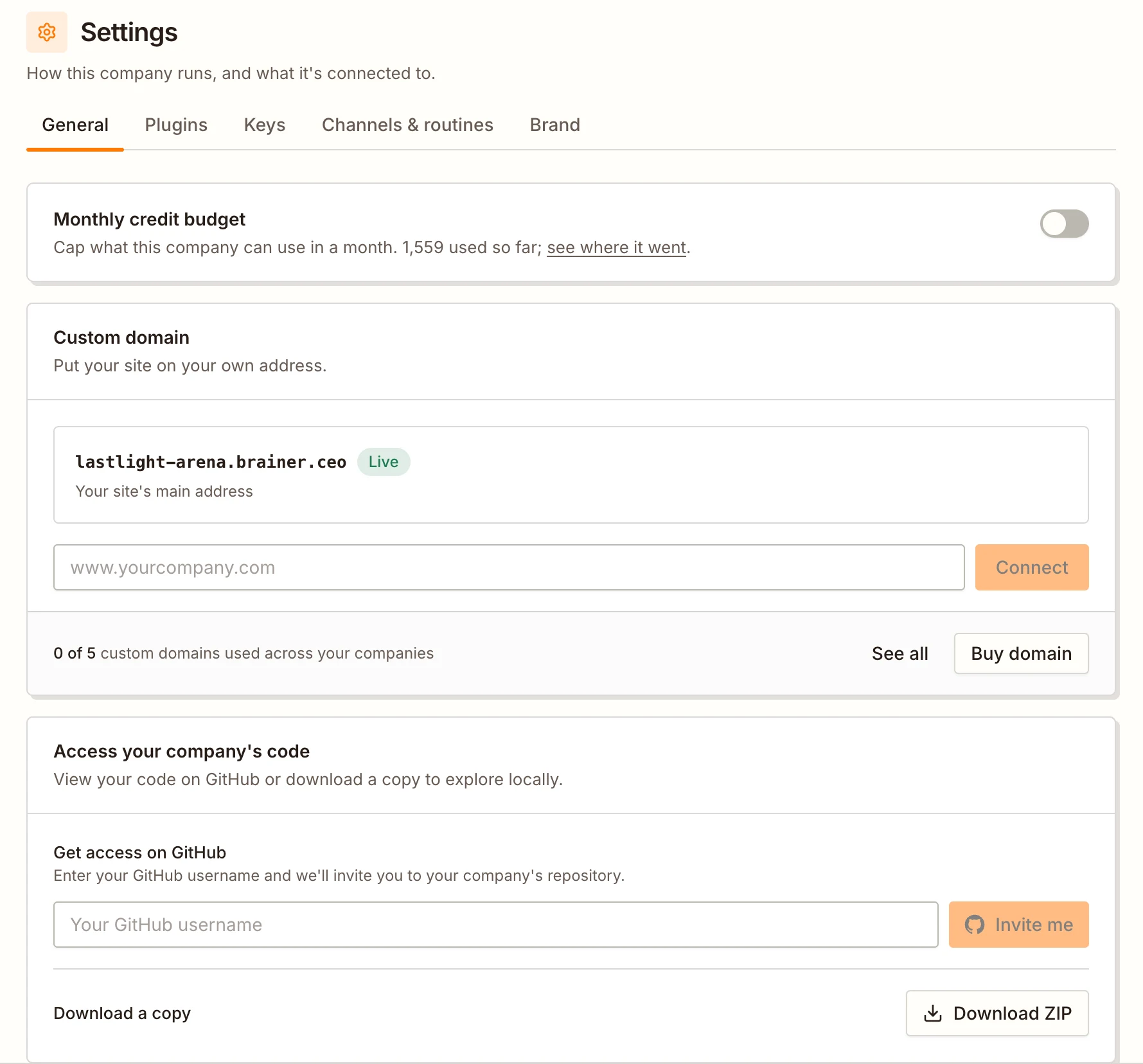
You own the code and the domain
Get your website’s code on GitHub, or download it as a ZIP file, at any time.
Connect a domain you already own, or buy a new one inside Brainer.
Finds possible customers and emails them
Your AI Outreach teammate decides who would want what you sell, finds those people and their work email, and writes each person an email. Finding contacts and sending emails are built in. You don’t need any other tool.
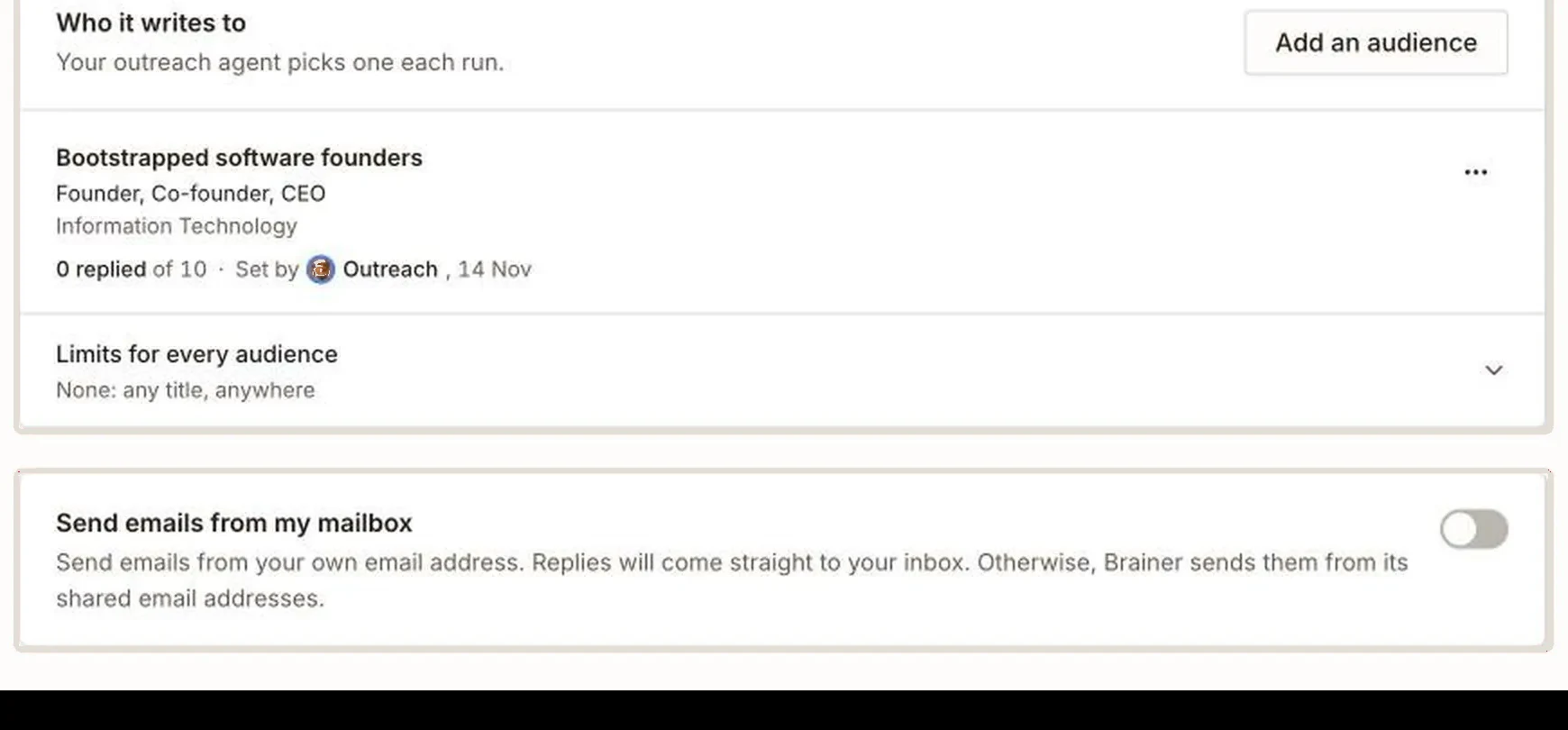

Outreach decides who to email
Outreach sets up a group of people to target, like “founders of small software companies”, and counts how many of them reply.
You can add your own groups, tell your CEO who to target, or paste in up to 200 contacts you already have.
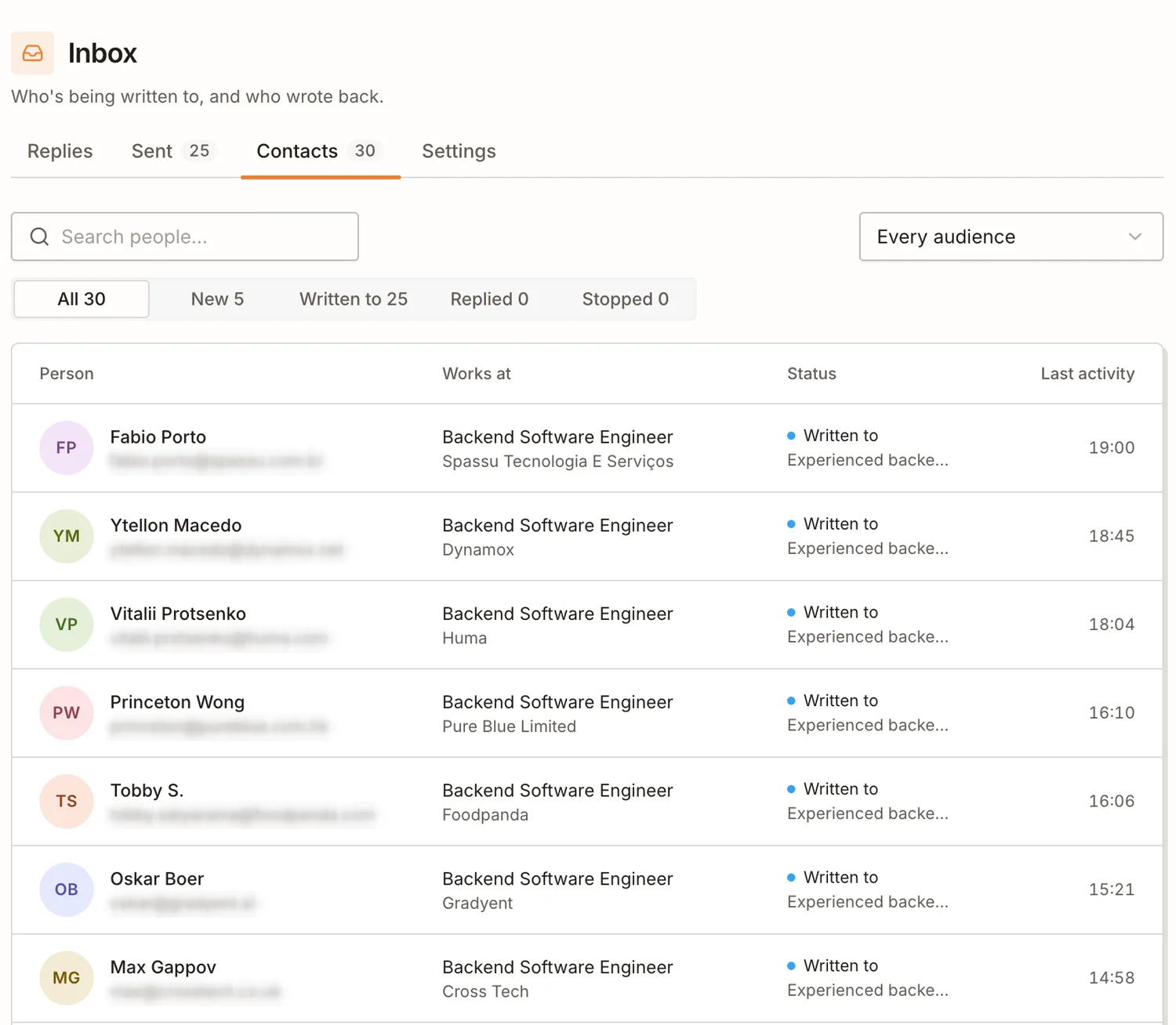
Outreach finds the people
For each group, it finds real people: their name, their job, their company and their work email.
It checks each person first and skips anyone who isn’t a good fit.
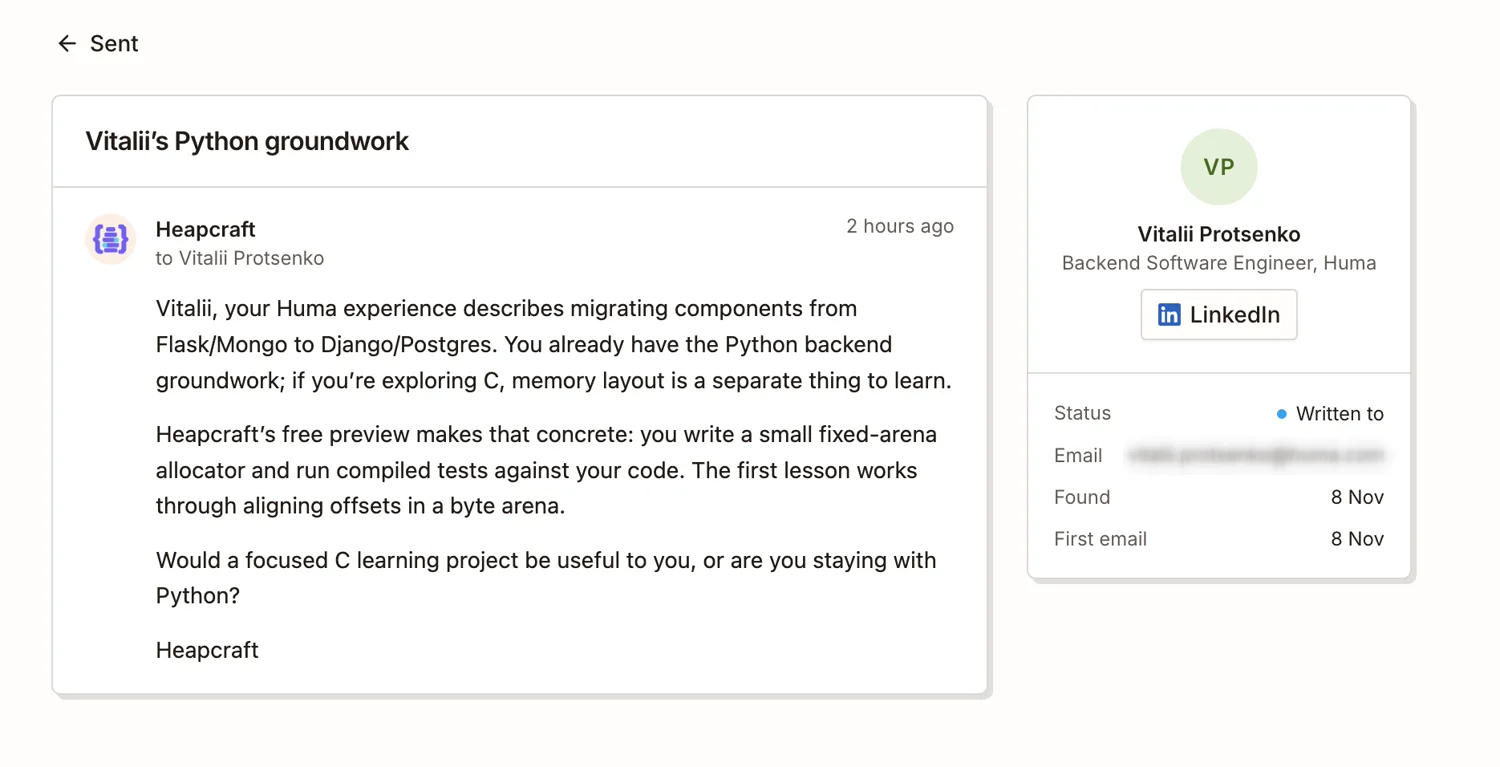
Outreach writes one email per person
It reads about each person’s work and writes an email just for them. It never sends the same template to everyone.
Emails go out at the times you choose. Want to read them first? Turn on Review emails before sending, and nothing goes out until you approve it.
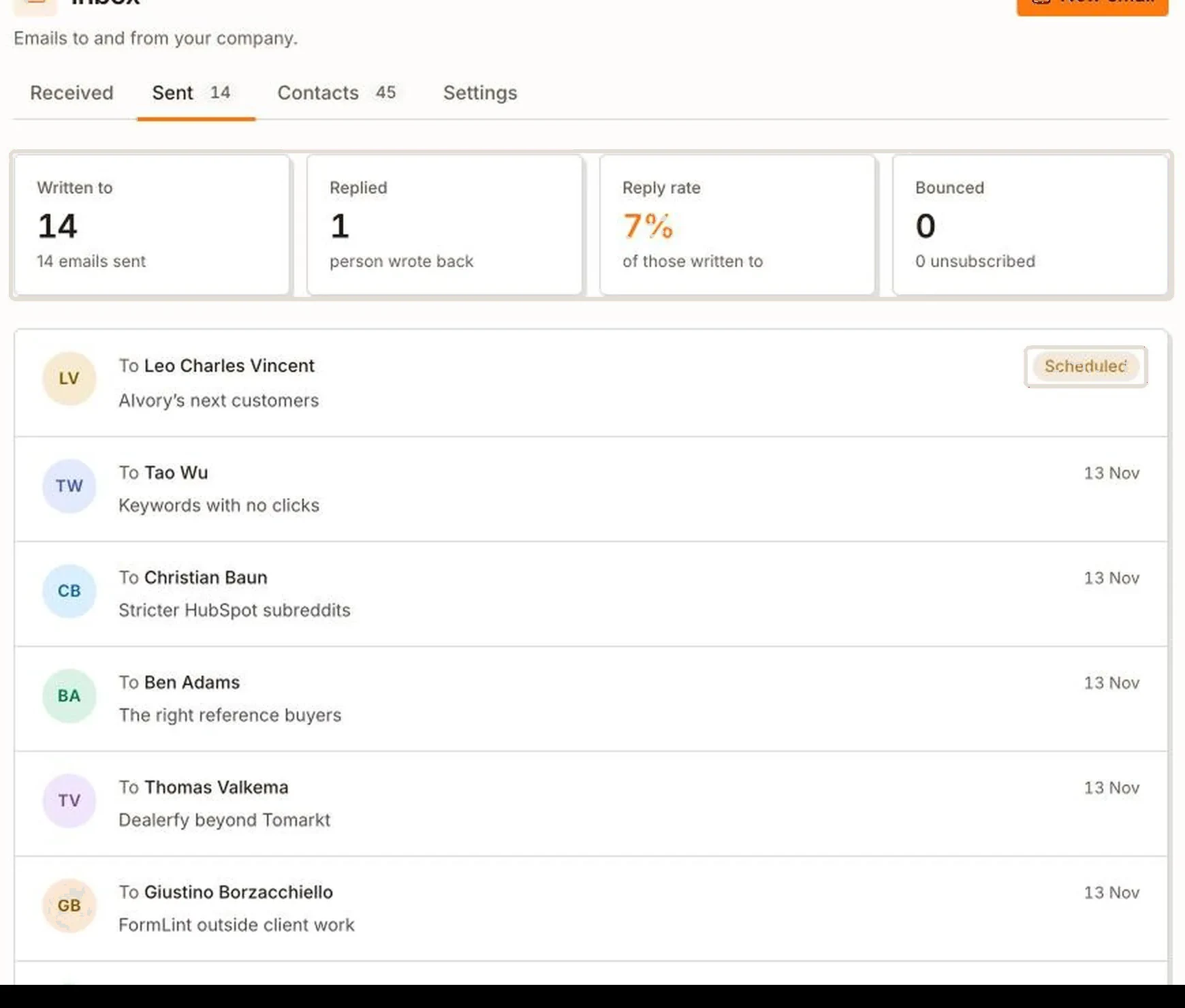
Replies come to your inbox
The Inbox page shows who was emailed, who replied, and the reply rate. You can answer a reply right there.
If you connect your own email account, replies go straight to your own inbox.
Writes blog articles that people find on Google
Your AI Writer finds what your customers search for on Google, writes an article that answers it, adds a cover picture and publishes it on your website. It repeats this on the days you choose.
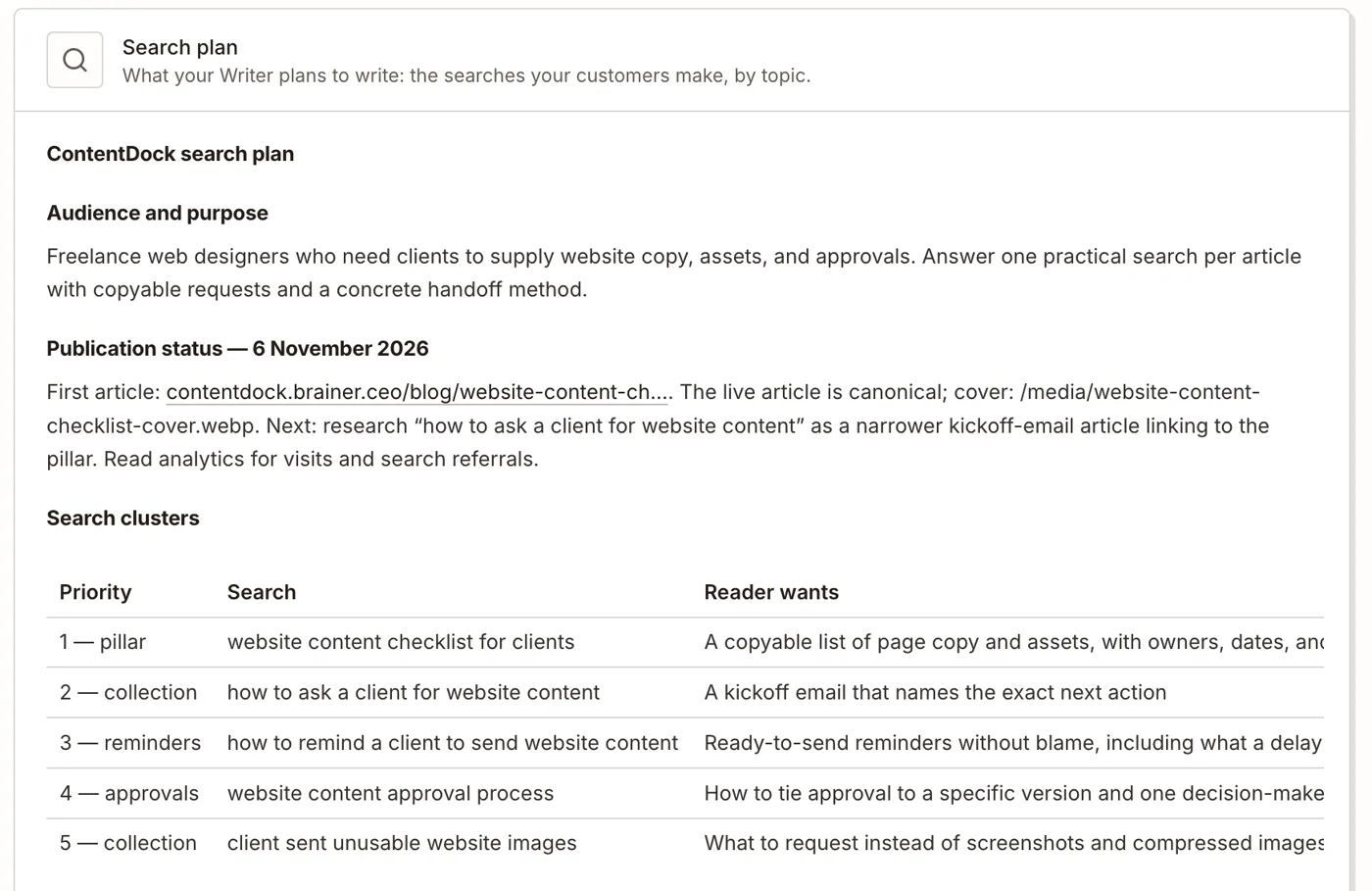
The Writer finds out what your customers search for
It looks up what people type into Google about your kind of product, and which articles already show up.
Then it decides which article to write first.

- ✓Answers one search, start to finish
- ✓Written in your brand’s voice
- ✓Cover picture made for it
- ✓Alt text on every picture
- ✓All 9 SEO checks passed
- ✓Checked on desktop and phone
The Writer writes the article and checks it
Each article fully answers one question and gets its own cover picture.
Before publishing, it checks the article against 9 SEO basics, so Google can find it.

The article goes live on your website
The Writer publishes it on your blog by itself. You don’t copy or paste anything.
You choose how often it publishes, for example three articles a week.
Runs Facebook and Instagram ads and improves them
Your AI Marketer makes the ads, runs them on your own Meta ad account and checks the results. It stops ads that don’t work and spends more on ads that do. It never spends more than your daily budget.
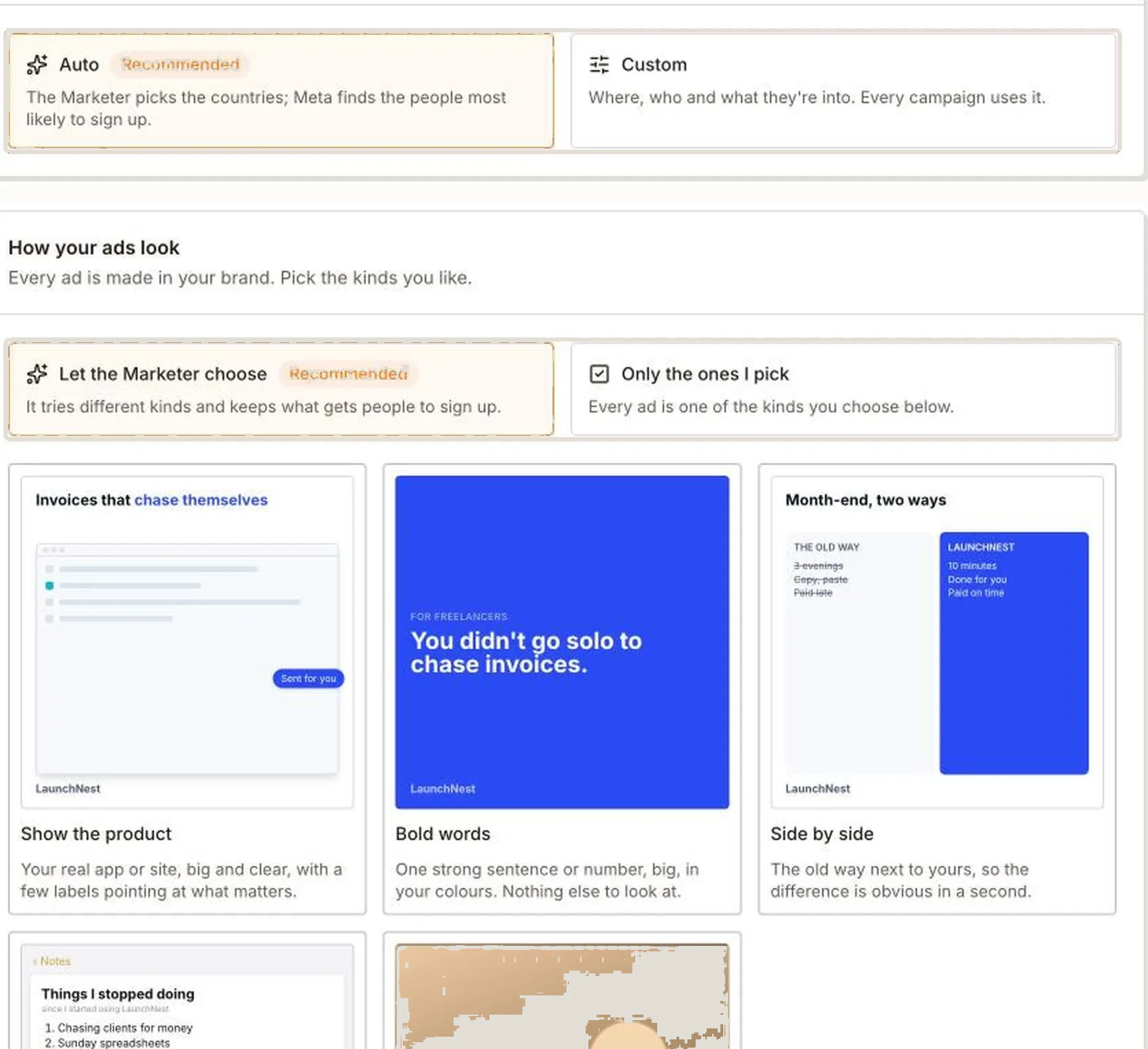
The Marketer makes the ads
It tries different styles of ad, like a product screenshot, one big headline, or a before-and-after, and keeps the styles that get the most signups.
You can pick the styles yourself, add notes, and list words the ads must never use.
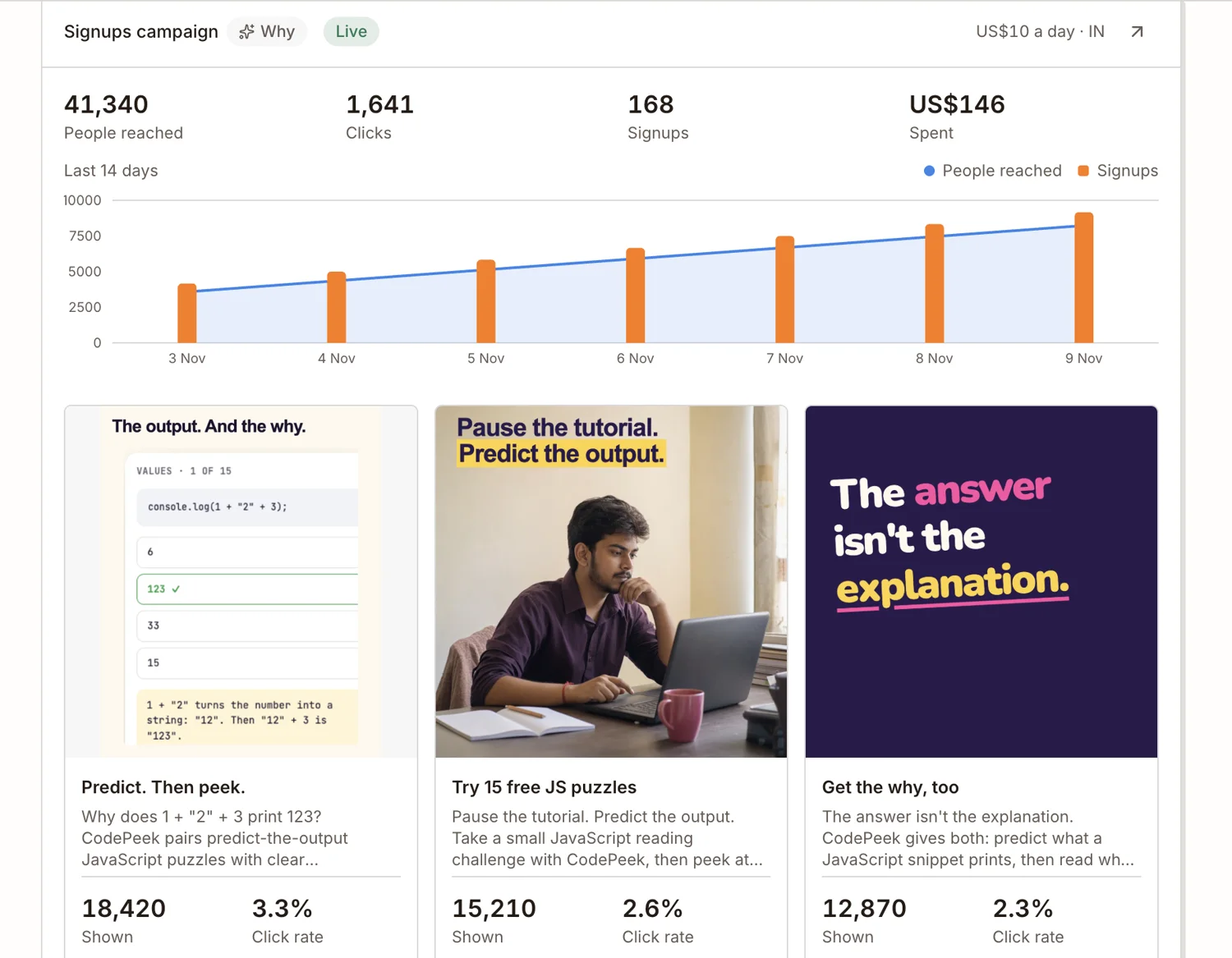

The ads run on Facebook and Instagram
It runs a few ads at the same time to see which one people click most. You see how many people saw and clicked each ad.
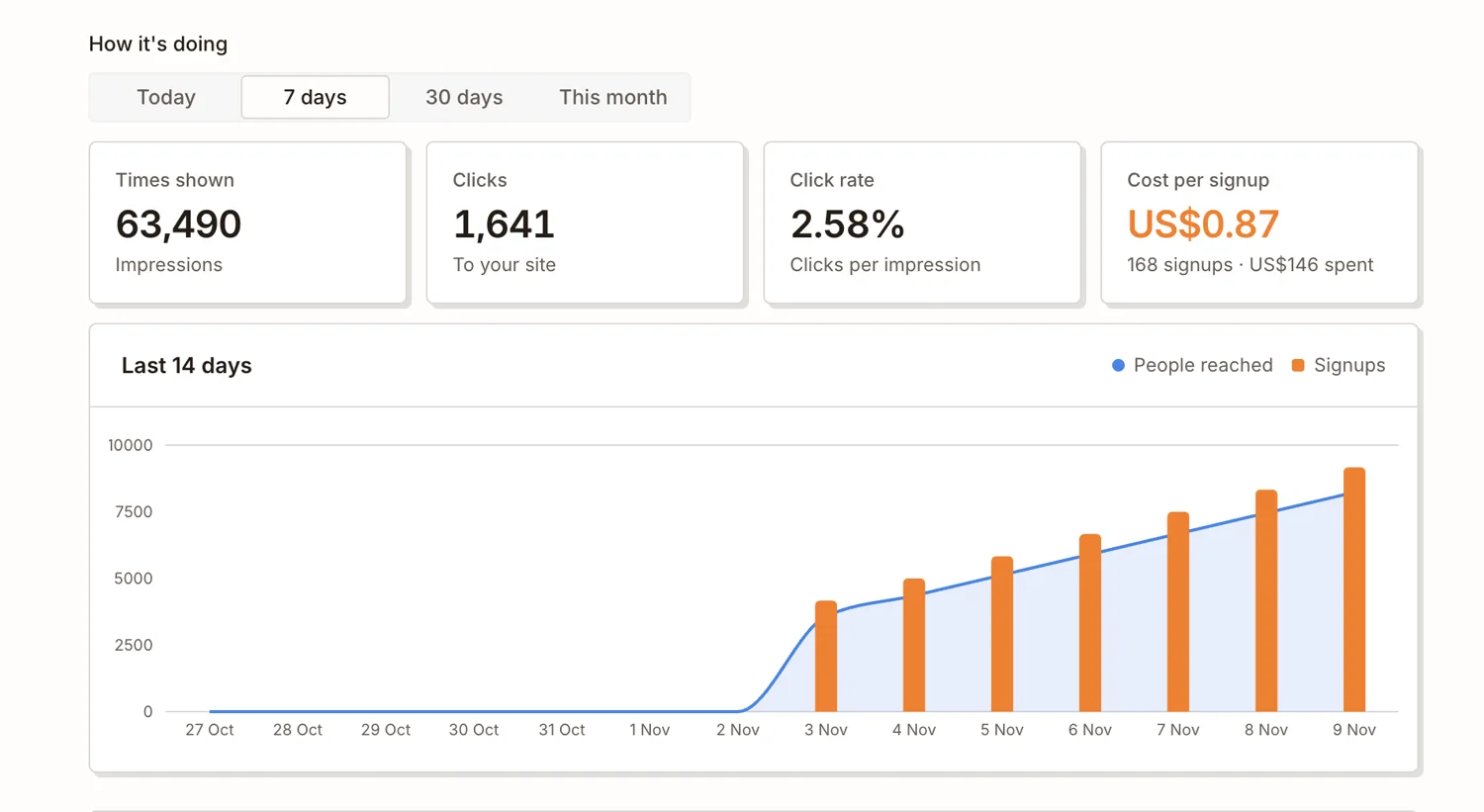
The Marketer keeps the ads that work
It checks how much each signup cost. It stops the expensive ads and makes new ones like the ads that worked.
If ads aren’t worth the money, it tells you.
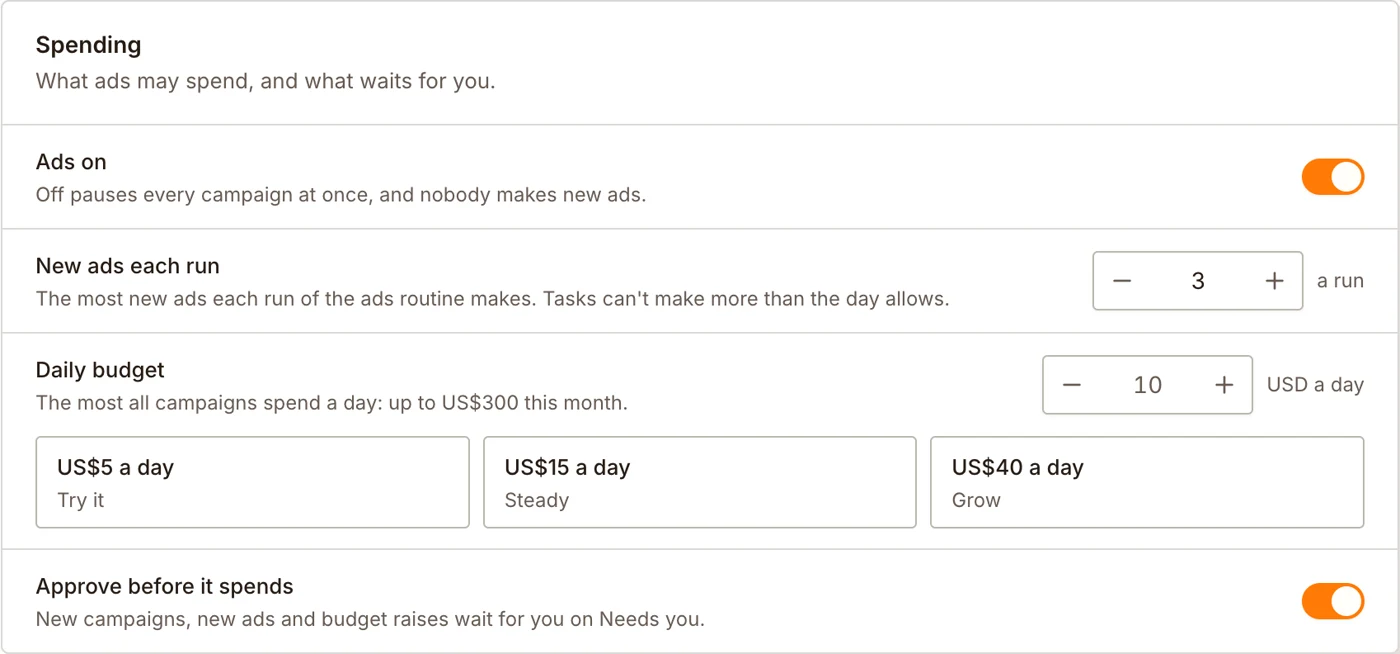
Always within your budget
You set a daily budget. The ads never spend more than that.
Turn on Approve before it spends, and every new ad or budget increase waits for your approval.
Get paid on your own Stripe
Sell from your website. Customers pay into your own Stripe account. Brainer takes no share of your sales.
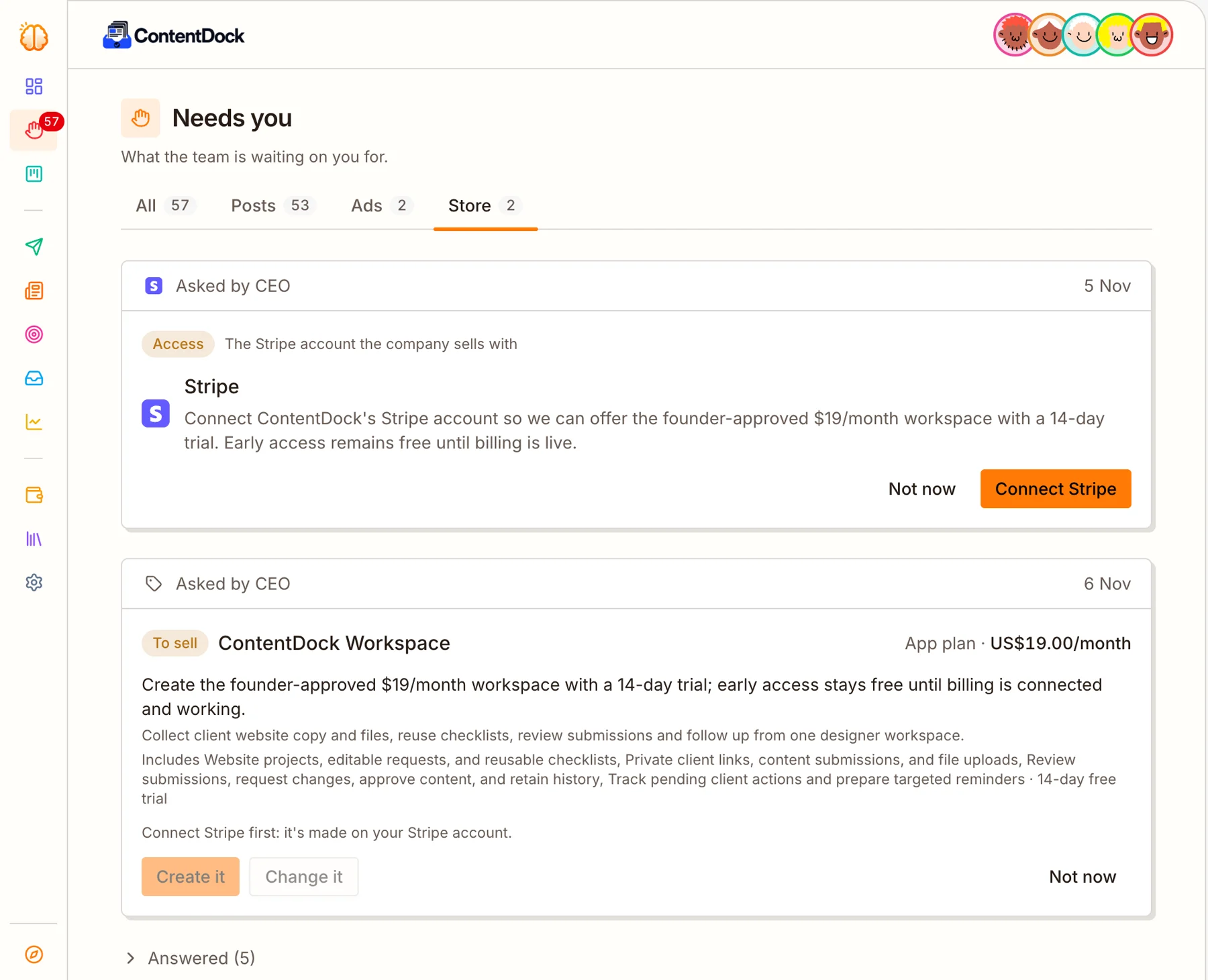
Your CEO suggests what to sell and the price
The CEO suggests a product and a price, based on what your customers need.
You choose: create it, change it, or not now. Nothing goes on sale without your approval.
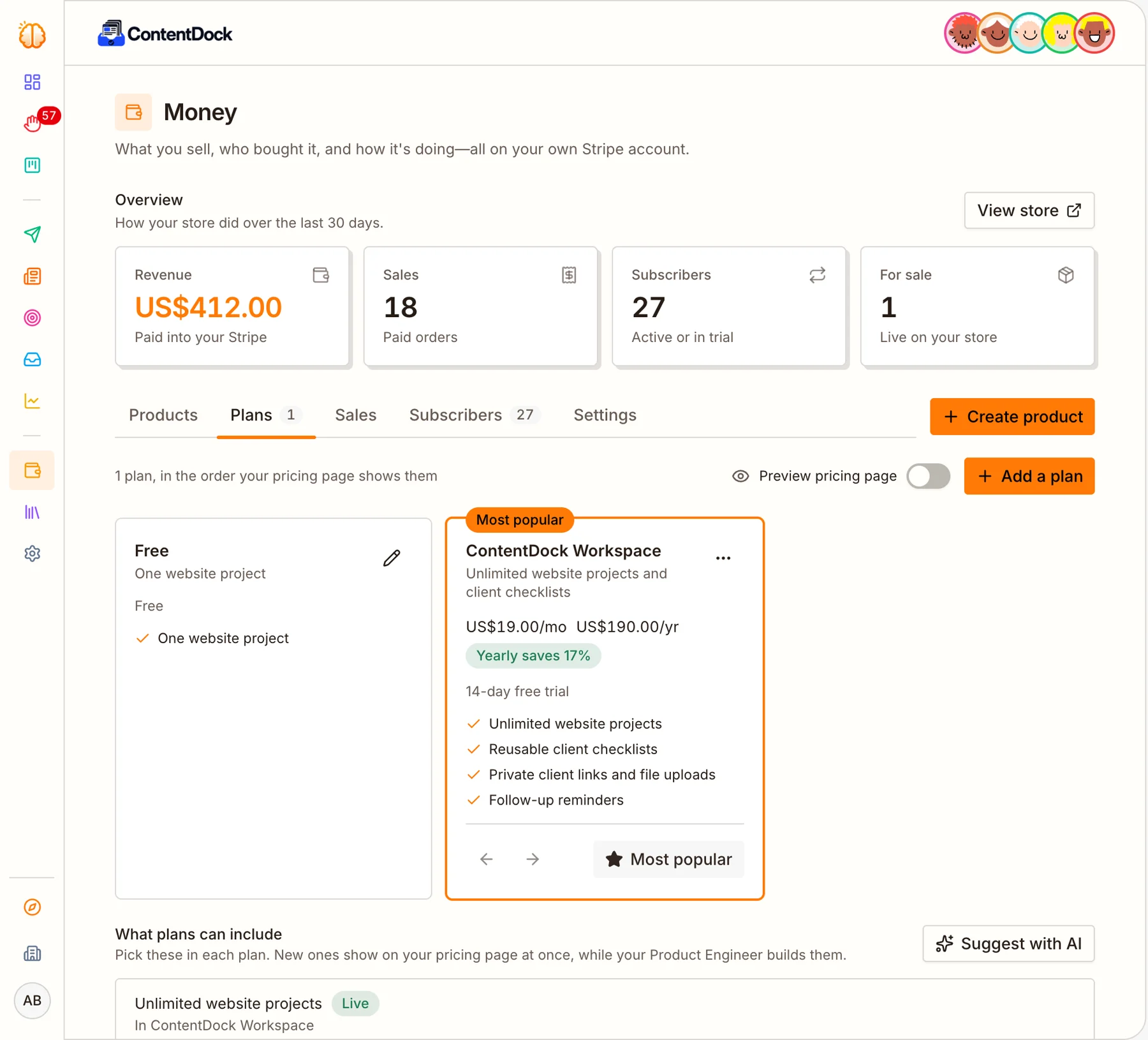
Your pricing page is made for you
Connect your Stripe account. Everything you sell appears on your website’s pricing page.
For subscriptions, the Engineer also builds what each plan unlocks in your app.
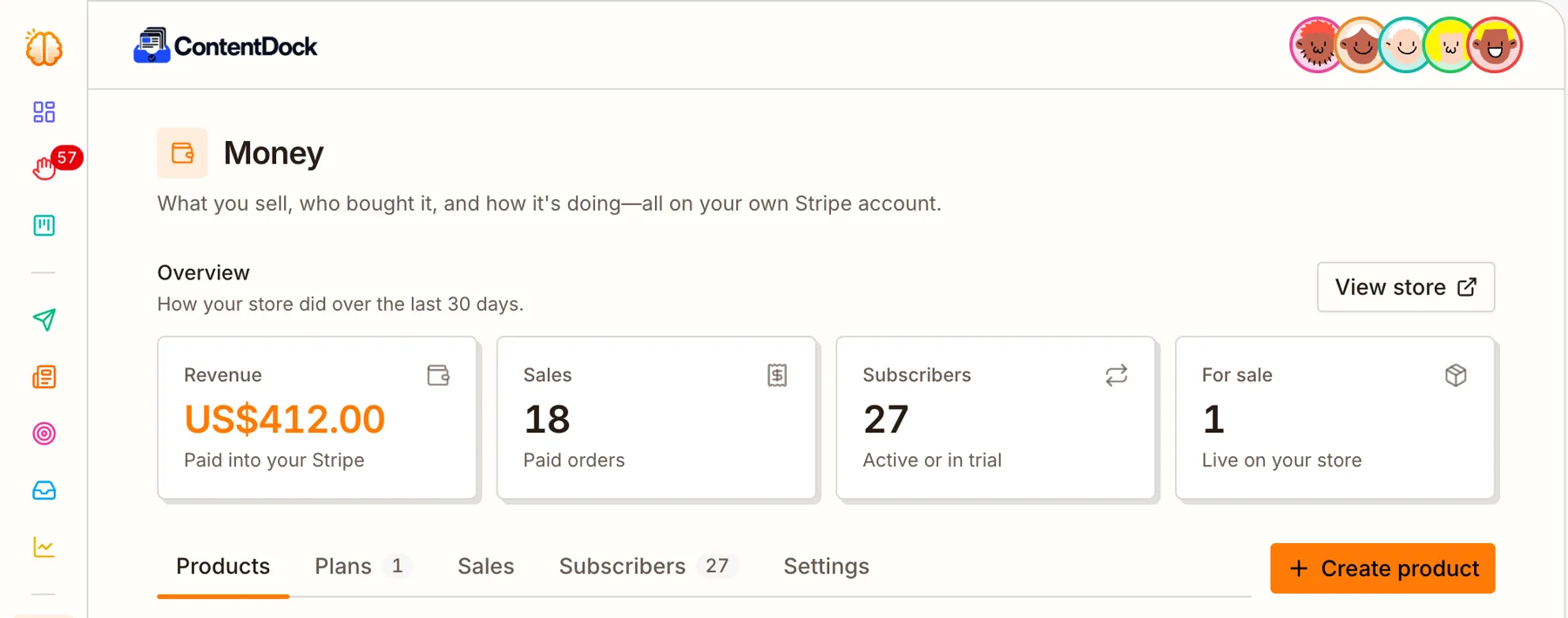
See your sales
Revenue, sales and subscribers for the last 30 days, with a list of every sale.
It keeps running, even when you’re offline
Your CEO checks on the company by itself, as often as you choose. The blog, social posts, ads and emails run on the days you choose.
- Checked the roadmap and the analytics
- Read the Writer’s and the Marketer’s reports
- Looked through the outreach inbox
Visitors are coming in from the blog, but most leave the homepage within seconds: it doesn’t say who BeanLedger is for.
I’ve asked the Product Engineer to sharpen the homepage before more people arrive from this week’s posts.
 Product Engineer · Started
Your CEO decides what to do next
At each check-in, the CEO reads your numbers, the team’s reports and your inbox. Then it decides what to fix or build next, and gives the task to the right teammate.
You don’t have to ask. It shows you what it checked and why it decided.
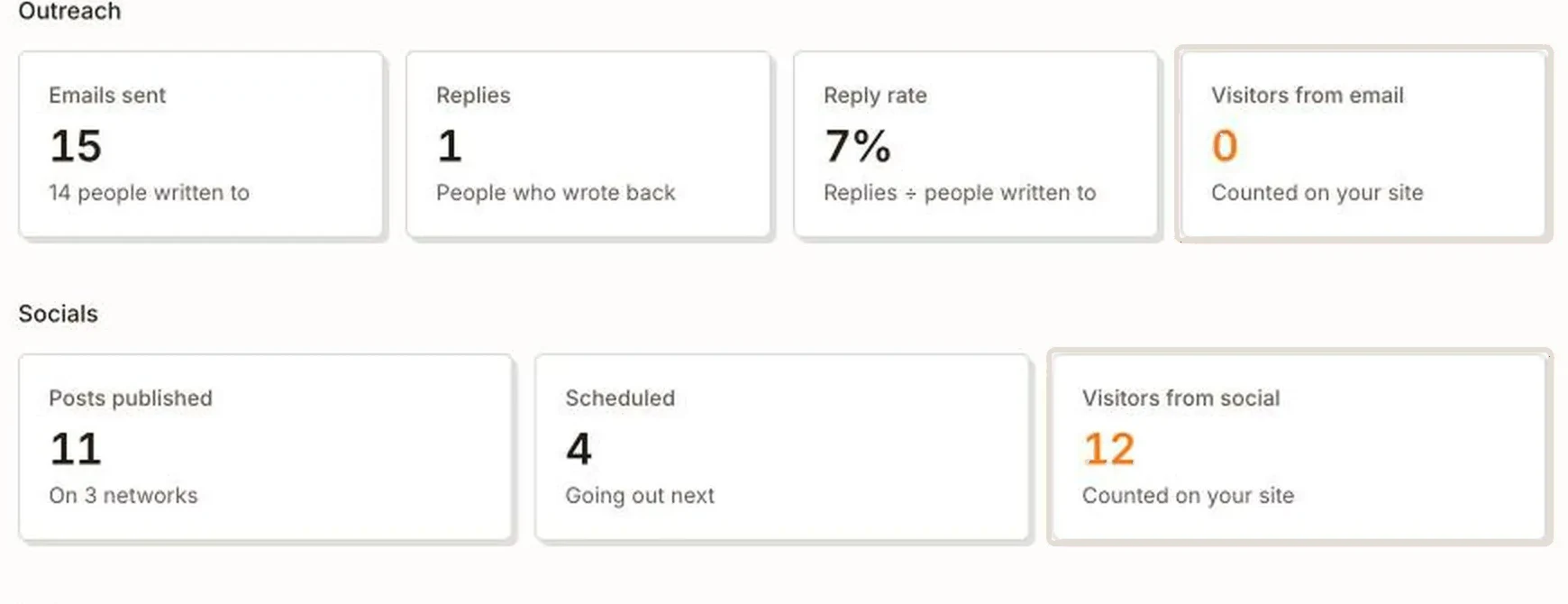
You see which channel brings visitors
The Analytics page counts visitors to your website and shows where they came from: ads, emails, social media or the blog.
Your CEO uses the same numbers to decide what to do more of. You can ask it about them in the chat.
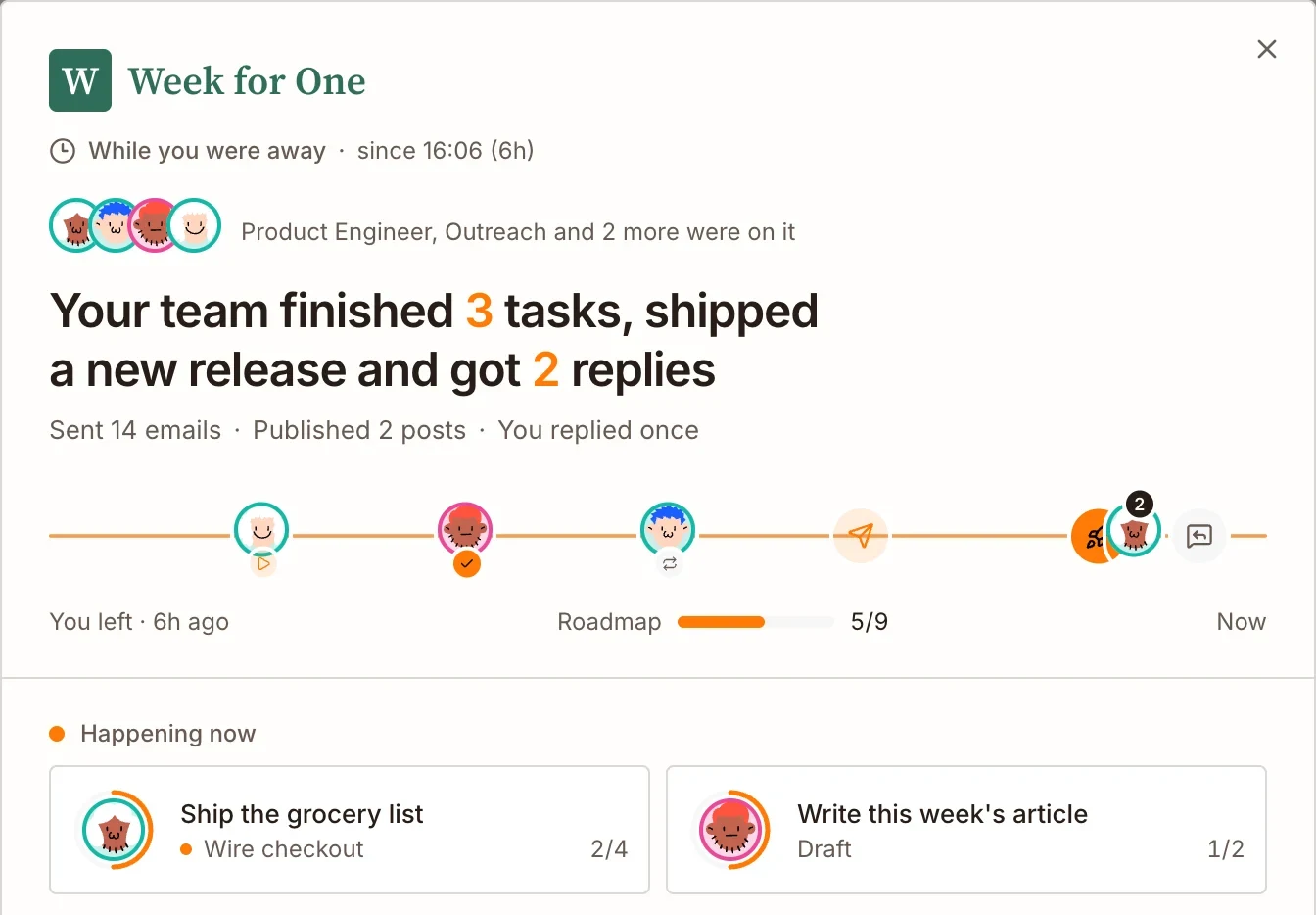
See what happened while you were away
When you open Brainer, a summary shows what the team did: tasks finished, changes made live, posts published and replies received.
Your CEO also emails you updates, so you know what’s happening without logging in.
Nothing important happens without you
The team can’t change your settings, set prices or spend more than your budget without you.
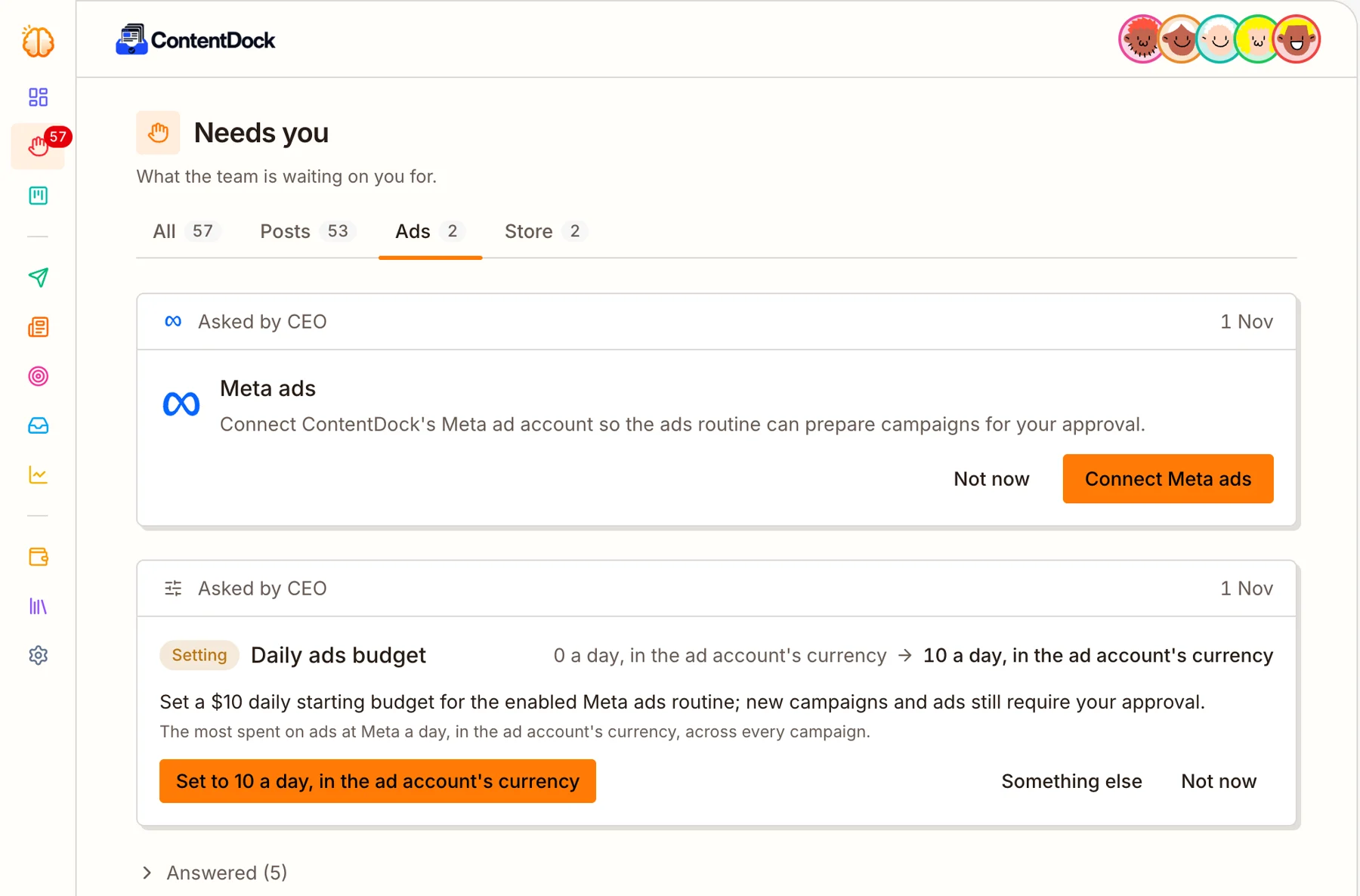
Important decisions wait for you
When the team needs your approval, like an ad budget, a price, or an account to connect, it asks on one page called Needs you.
You answer yes, change it, or not now. The team keeps working on everything else while it waits.
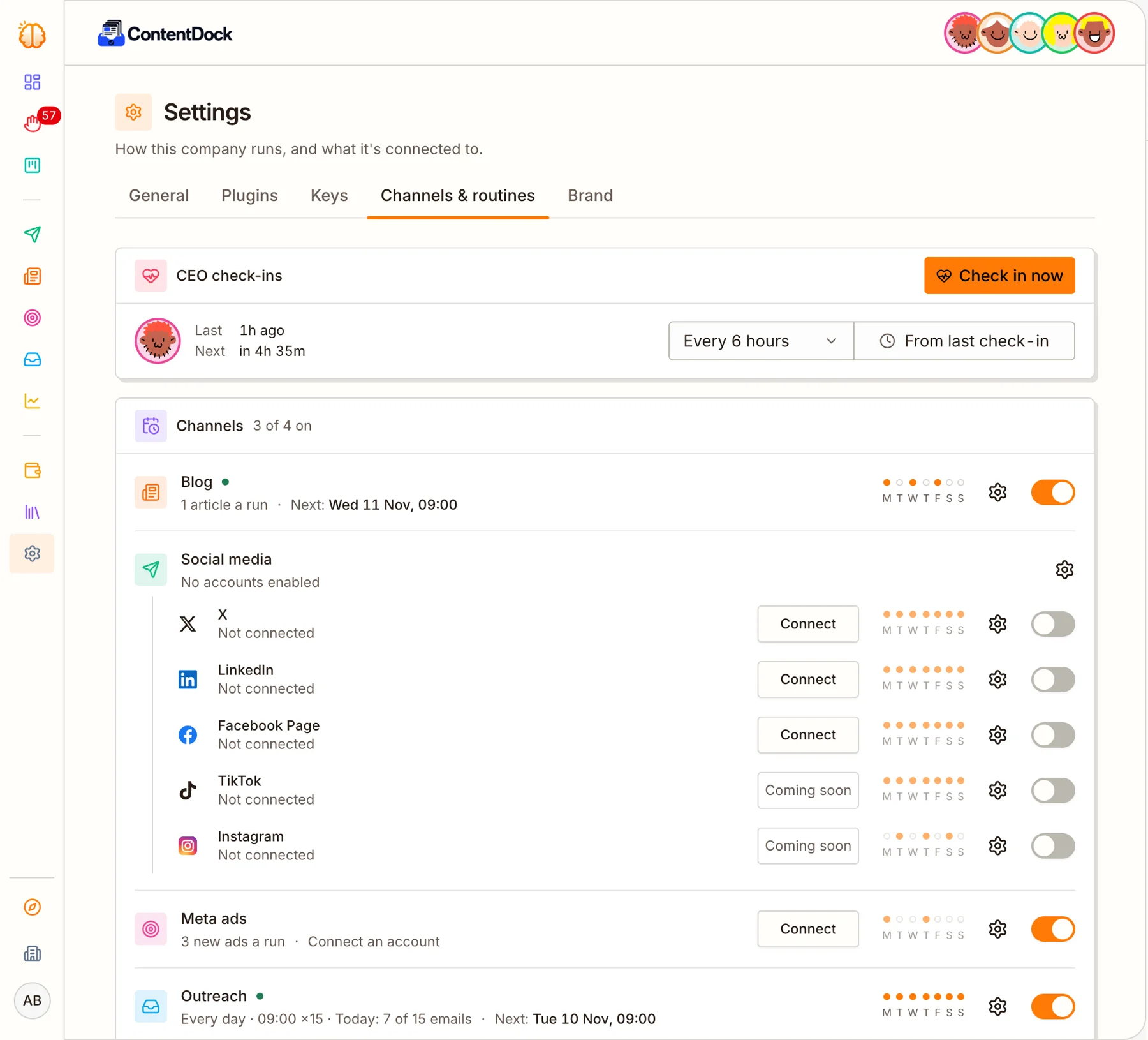
Turn anything on or off
The blog, social posts, ads and emails each have their own schedule and an on/off switch.
You can also set a monthly spending limit for the company, or pause the whole company with one click.
One product instead of six separate tools
Your website is built, hosted and updated for you.
Finds possible customers and emails them for you.
Writes posts, makes pictures and videos, and publishes them.
Writes and publishes articles that people find on Google.
Runs and improves your Facebook and Instagram ads.
Shows visitors, signups and sales, and where they came from.
Questions
What kinds of businesses can use it?
Most businesses that sell online or find customers online: services, software, digital products, agencies, consultants and small local businesses.
Do I need a website?
No. Tick “I don’t have a website yet”, and the team can build one for you.
Will it change my website?
Only if you want it to. The team can focus on finding customers and leave your website as it is.
Will it change my code on GitHub?
No. Brainer copies your project once. Your own repository is never changed.
How does it learn about my business?
Your CEO reads your website and your Google Business Profile, and any files you send. It writes what it learns into your company documents, which you can read at any time.
Do I need my own email account to email customers?
No. Brainer finds the contacts and sends the emails from its own email accounts. If you want replies to come straight to you, connect your own email account.
Do I have to connect my accounts first?
No. When the team needs an account, like Stripe or Meta, it asks you on the Needs you page.
Writes your social media posts and publishes them
Your AI Marketer decides what to post, writes the text, makes the picture or video, and publishes it at the times you choose. You don’t have to write or schedule anything.
The Marketer decides what to post about
It picks topics from your product and your customers’ problems. It looks at how your last posts did before writing new ones.
Then it makes that day’s posts for each network and sends you a short report.
The Marketer writes the post and makes the picture
Each post says one useful thing, written to suit the network it’s for.
Each post gets its own picture. Video posts get a short video.
You see why it wrote each post
Every post has a short note from the Marketer explaining why it chose that post.
Upcoming posts are shown before they go out. You can edit them, change the time or cancel them.
You set the rules for each network
Choose the days and times posts go out. Choose if posts can have pictures, videos and links. Add instructions like “no hashtags”.
Want to approve every post first? Turn on Wait for me to approve.
Connect your accounts when you’re ready
Connect X, LinkedIn or a Facebook Page, and posts for that network go out by themselves.
Not connected? The post is still written, with its picture, ready for you to copy and post.